

We plan to support all the major desktop operating systems currently in use (Windows, Mac, Linux). Porting the software to other platforms supported by the JVM should be quite straightforward as most of the code is already platform independent.
We provide four different distributions for the software: 1) the modular runtime is good for systems where installation of applications such as the Java development kit is limited -- the package is a zip file that should run even if the user has no administrator account, 2) the legacy jar is platform neutral, but requires a pre-installed Java development kit, 3) the Docker image is useful for server / cloud environments where applications should be deployed cleanly without interfering each other, and 4) the source distribution for those who want to manually build the application binary from its source code.
Platform support
The following table shows which platforms are currently supported by PowerGoblin.
| Deployment model | Linux x86-64 | Linux ARM64 | Windows x64 | macOS ARM64 | macOS x86-64 |
|---|---|---|---|---|---|
| Legacy jar | X | X | no drivers | no drivers | no drivers |
| Prebuilt Docker image | X | - | untested | untested | untested |
| Local build from sources | X | X | no drivers | no drivers | no drivers |
| Prebuilt modular runtime | X | - | - | - | - |
Currently, 32-bit support is being phased out on most popular operating systems (e.g. #1, #2, #3) and the Java environment (#4, #5).
There are plans to release Mac and Windows support some time later (e.g. https://github.com/manuelbl/JavaDoesUSB, https://sigrok.org/wiki/Libserialport). Generating prebuilt docker/modular images for Windows and Mac is limited by the capabilities of the available GitLab CI/CD environment.
If you wish to add support for other platforms, send us a patch. See the technical manual for more details.
There are some limitations when using the Windows/Mac versions:
| Feature | Windows | Mac | Linux |
|---|---|---|---|
| Fast telnet | - | - | io_uring |
| USB/HID device driver | - | - | libusb |
| Serial device driver | - | - | termio |
Installation methods
The official project page for the tool is located in the GitLab instance hosted by University of Turku. If you're familiar with GitLab/GitHub projects, you can easily follow the instructions on the project page to build the software yourself.
Jar distribution
If you simply want to start using the software without doing any software development, we provide a prebuilt platform-agnostic jar package. The file only contains the PowerGoblin application, and a separate Java runtime is required. Free Java distributions are available via Adoptium. The advantage of this approach is that the same file runs on a wide variety of different operating systems.
The instructions are straightforward. Start by downloading the package:
$ wget https://tech.utugit.fi/soft/tools/power/powergoblin/powergoblin.jar
Later the application launch can be tested by executing the launcher:
$ java --enable-native-access=ALL-UNNAMED -jar powergoblin.jar
You can now continue to the next phase of configuring the system. There are later further instructions for launching the software.

Modular runtime
The modular runtime contains both the Java runtime and PowerGoblin. If you use a major Linux distribution (64-bit x86 / glibc), you can simply start using the software without doing any software development. We provide a prebuilt zip package.
The instructions are straightforward. Start by downloading and unzipping the package:
$ wget https://tech.utugit.fi/soft/tools/power/powergoblin/powergoblin.zip
$ unzip powergoblin.zip -d powergoblin
This step only needs to be done once. For other platforms, we do not provide a prebuilt image and really recommend the jar package approach, which requires also downloading Java. However, if you want to try building the modular runtime yourself, take a look at the build instructions in the technical manual.
Later the application can be started by executing the launcher:
$ powergoblin/bin/power
You can now continue to the next phase of configuring the system. There are later further instructions for launching the software.
Prebuilt Docker image
We also offer a Linux / x86-64 Docker image for easy deployment:
$ docker login registry.gitlab.utu.fi
$ docker pull registry.gitlab.utu.fi/tech/soft/tools/power/powergoblin
If you do not have access to our Docker repository, please follow the instructions on the technical manual to generate the image locally.
You can now start the container quite easily:
$ docker run --privileged registry.gitlab.utu.fi/tech/soft/tools/power/powergoblin:latest
You can now continue to the next phase of configuring the system. There are later further instructions for launching the software.
Custom build
The official project page for the tool is located in the GitLab instance hosted by University of Turku. If you're familiar with GitLab/GitHub projects and wish to build the software yourself, please follow the instructions on the technical manual.
Other platforms
Raspberry Pi
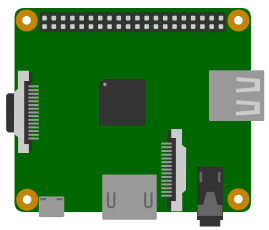
Currently, the Raspberry Pi (models 3, 4, and 5) platform is the supported "reference hardware platform" for PowerGoblin. We especially recommend the models with at least 1 GB of RAM and the "B models" with more USB ports, which allows connecting more meters. For larger measurements, more RAM might be required. The largest models already have at least 8 GB of RAM, which should be more than sufficient. See the tips section for help on running the software on low-end hardware.
In general, any ARM64/AArch64 board should work as well. Based on our testing, even musl based distributions should work without changes. The most limiting factor is the operating system support. The OS we recommend (DietPi) supports over 60 different ARM based boards. While Raspberry Pi is probably the most popular brand of SBCs, it is not the cheapest or most powerful board out there.
Purchasing the platform should be straightforward and all devices should behave in a similar way... Having a prebuilt SD card image would be nice, but we do not have the resources to customizing the base image at the moment.
We have tested the application on Raspberry Pi 4 using different operating systems. Raspberry Pi OS works as well. Arch Linux ARM image did not boot due to some issue with the SD card (drivers).
The following steps document the process required to set up the operating system and PowerGoblin on Raspberry Pi.
Step 1: Installing the OS:
Since the Raspberry Pi does not boot without an OS, you'll need another system to flash the initial OS image on a SD card, a SD card reader, a SD card, and a flashing software. We also need to obtain the operating system image.
Choosing a SD card reader:: We recommend the Transcend RDF5 (USB ID 8564:4000), which is a cheap, reliable, and fast USB3 based SD card reader. For new systems with USB-C ports you might either need to use another reader or a USB-C - USB-A adapter.
Choosing a SD card: When choosing a SD card, consider buying a fast UHS-I or UHS-II card with a theoretical speed of 90+ MB/s. We have used SanDisk Ultra 32 or 128 GB SDHC UHS-I cards. A 16 GB card is probably large enough. A fast 16 GB card is definitely a better choice than a slow 128 GB card. In fact, 128 GB cards may be too large for Raspberry Pi and will result in an unbootable system. We do not recommend buying suspiciously cheap SD cards online, because those quite often are too slow, and in the worst case can even corrupt your data.
Choosing a flashing software: For flashing the OS image, there are several options. We recommend Rufus on Windows, and gnome-disks (shipped with GNOME) on Linux. Although many others will recommend the Balena Etcher, we do not. The gnome-disks tool even has a built-in benchmark tool with which you can verify that the reader & the SD card are fast enough.
Choosing the operating system distribution: We recommend the DietPi operating system distribution (the "reference software platform"), which has two different images available for the reference hardware platforms. We only support the ARMv8 version, and it will also have higher performance and also likely longer support. The download links are here:
The initial OS image comes in a compressed 150 MB xz package. The package first needs to be decompressed with a xz decompression tool. The extracted image grows to around 900 MB. A fast SD card reader is recommended because the write speed for SD cards can vary greatly, typically between 2 and 90 MB/s. This means the process takes from 10 seconds to 10 minutes. Keep in mind that a slow card will also be slower later when setting up the system and doing measurements.
On Linux / Unix like systems, the following commands can be used to flash the image on SD. The Raspberry Pi Foundation suggests using more user-friendly image flashing applications. The dd command is potentially dangerous and can destroy important data. Don't use this approach if you don't know which device file represents the SD card. The target device varies between the systems. Here it is /dev/sdf. It is typically of the form /dev/sd?. Internal SATA hard drives and optical drives also use these naming conventions. Many other USB mass storage devices also show up as /dev/sd devices.
$ wget https://dietpi.com/downloads/images/DietPi_RPi234-ARMv8-Bookworm.img.xz
$ xzcat DietPi_RPi234-ARMv8-Bookworm.img.xz | sudo dd of=/dev/sdf status=progress bs=1M
Step 2: First boot
After flashing the image, insert the SD card to the Raspberry Pi's card slot and reboot the Raspberry Pi. On first boot the system will configure various system settings. The installed packages will also be updated. Plug a monitor to the HDMI 1 port which is the one farther from the USB-C power port. The update process also assumes a network connection. We've tested this with a wired network.
Step 3A: Use our setup script
We provide a simplified setup process for those of you who are comfortable running scripts downloaded from the internet as the root user:
$ curl https://tech.utugit.fi/soft/tools/power/doc/rpi.sh | bash
This basically installs all the software listed below, but also clones the git repositories for local development. Later, if you wish to run PowerGoblin, there's a script that works in any folder:
$ powergoblin
If you're happy with this setup, please continue to the next phase for further instructions on setting up the drivers to actually run the application.
Step 3B: Install the required runtime libraries
Next, after the reboot, open a terminal and install more software:
$ sudo apt update
$ sudo apt install libhidapi-dev liburing-dev openjdk-25-jre
Step 4: Download PowerGoblin
Then, download the PowerGoblin's jar distribution:
$ wget https://tech.utugit.fi/soft/tools/power/powergoblin/powergoblin.jar
Step 5: Executing the application
The downloaded jar file can be launched directly:
$ java --enable-native-access=ALL-UNNAMED -jar powergoblin.jar
The --enable-native-access=ALL-UNNAMED option is a recent addition in Java 25+ and is supposed to control the access to low level devices. Obviously PowerGoblin requires such access, because it is communicating with power meters.
Step 6: After a reboot
Later, we'll probably reboot the system and/or close the terminal. Since we are back in the home directory after a reboot, remember to switch to the application's directory before launching:
$ java --enable-native-access=ALL-UNNAMED -jar powergoblin.jar
This platform does not seem to require the configuration of TTY permissions in the next phase. For SmartPower 3 meter, a firmware update may still be required because the original firmware might use an incompatible protocol. Both procedures are described in the next phase.
Tips for low memory hardware
If less than optimal performance is acceptable, we have few recommendations:
OS related:
- set up a swap file in ZRAM (compressed ram disk) or a physical swap partition
- turn off OS background processes and kernel drivers
- turn off unnecessary HW features such as HDMI & GPU
- switch to more lightweight utilities (e.g. bash -> dash / busybox)
Application configuration:
- use fewer meters / channels
- use lower sample rate
- use stricter resource filters
- disable services: telnet, mqtt
- disable logging features: OpenDocument spreadsheet, plot generation, energy reports, simulated meters
Fine tune the software:
- create a native build of the application (graal native-image). This also requires switching to another json library (kotlinx-serialization).
Descriptions:
- Swap: First, we would recommend either setting up swap file in ZRAM (compressed ram disk) or a physical swap partition. ZRAM should work especially well because the measurement data has lots of redundancy.
- Background processes: Diet Pi already has very minimal set of background processes. Turning off processes and kernel drivers has a small effect on the amount of free RAM.
- HW features: Turning of HW features such as GPU can be significant effect. On the RPi, tens of megabytes of RAM could be reserved for graphics.
- Lightweight apps: Optimizing the shell and other apps might use a bit less RAM, but not much.
- Fewer meters / channels / samples: collecting less data generates more data structures in memory. The application already streams the events to disk, but on very low-end systems this might help.
- Resource filters: having stricter filters means less data will be collected.
- Disable services / features: turning off services / features also starts fewer background processes and accumulates less data.
- Native build: a native build would use AOT compiled code instead of JIT, which can help reduce the memory use.
The proposed solutions will take some time to set up. If you don't know how to change these settings yourself, you can probably save time and money by buying a device with more memory in the first place.
Next step: Configuring the drivers and software
Please continue to the next phase for further instructions on setting up the drivers to actually run the application.